Set up MFA
Microsoft 365
Step-by-step guide to turn on Multi-Factor Authentication with Microsoft Authenticator.
Step-by-step guide to turn on Multi-Factor Authentication with Microsoft Authenticator.
Multi-Factor Authentication (MFA) is an extra layer of security for your institutional Microsoft 365 account. In addition to your username and password, you will confirm your identity from your phone with the Microsoft Authenticator app.
This way, even if someone else knows your password, they will not be able to access your account without your phone. Follow the steps in this guide to set it up for the first time.
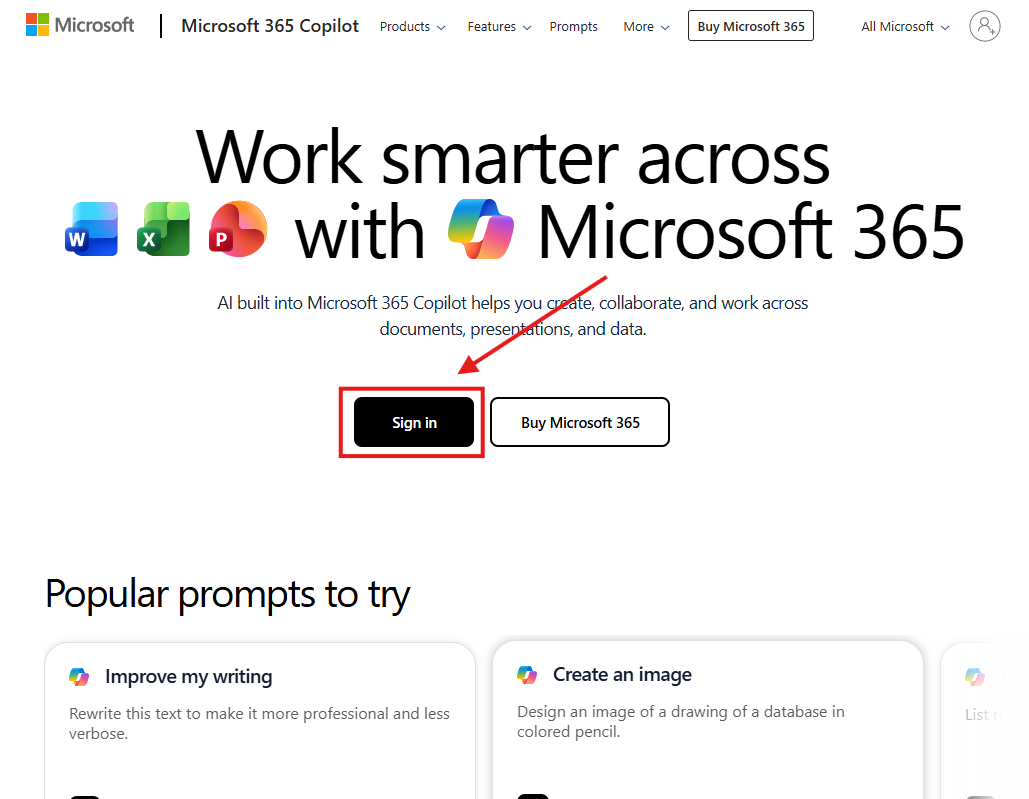
On your computer, open www.microsoft365.com (or portal.office.com) and click the Sign in button.
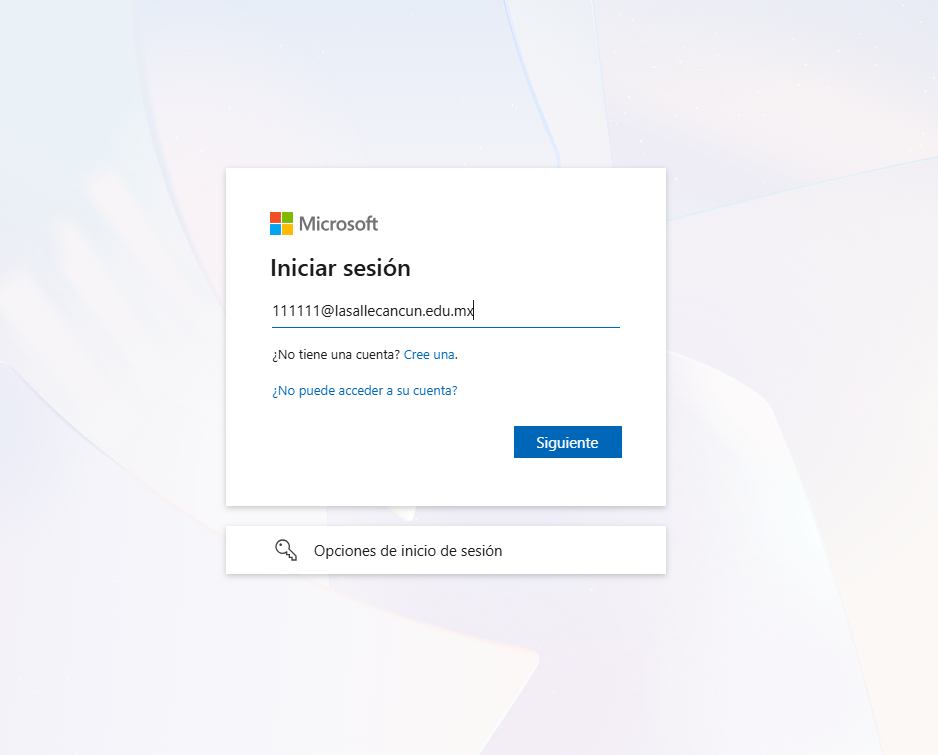
Enter your institutional email, for example studentid@lasallecancun.edu.mx,
and click Next.
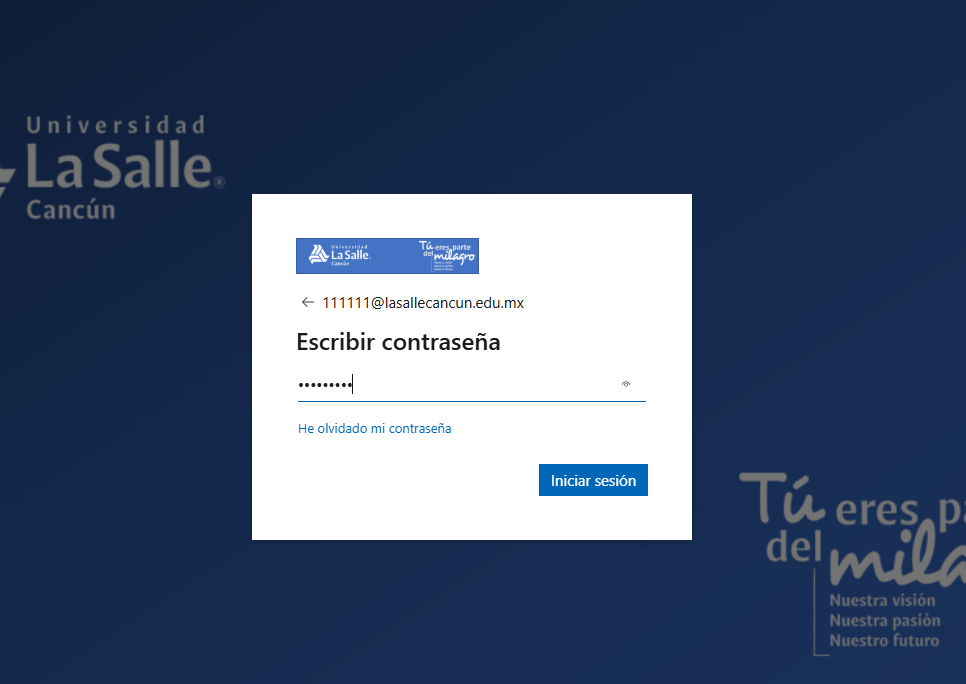
Type your password and click Sign in.
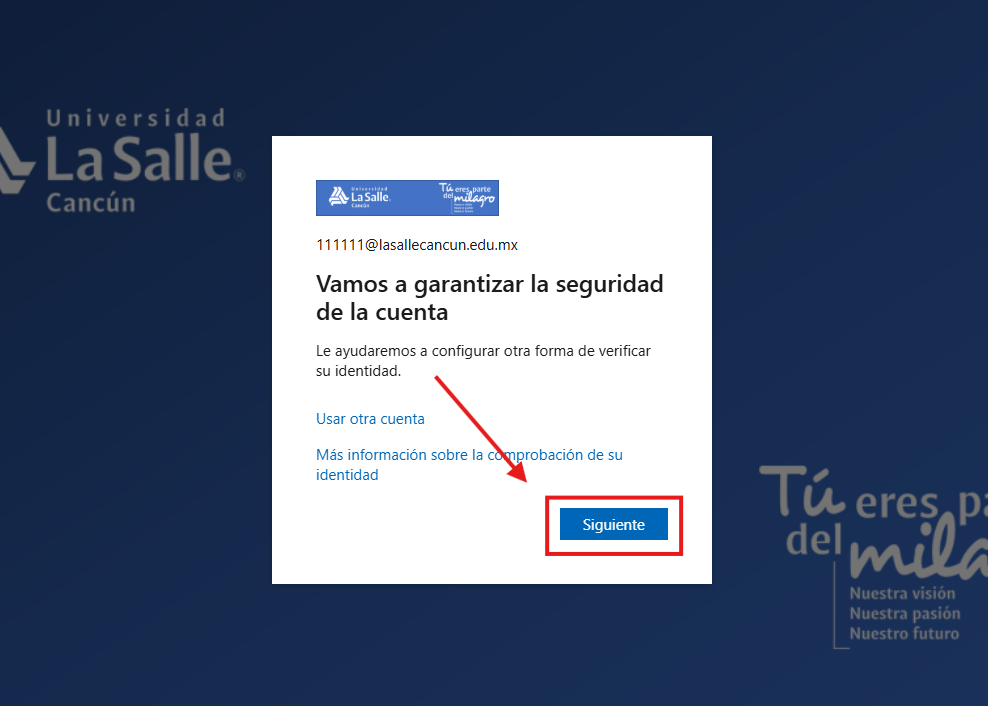
The system will show the message "Keep your account secure". Click Next to begin the setup.
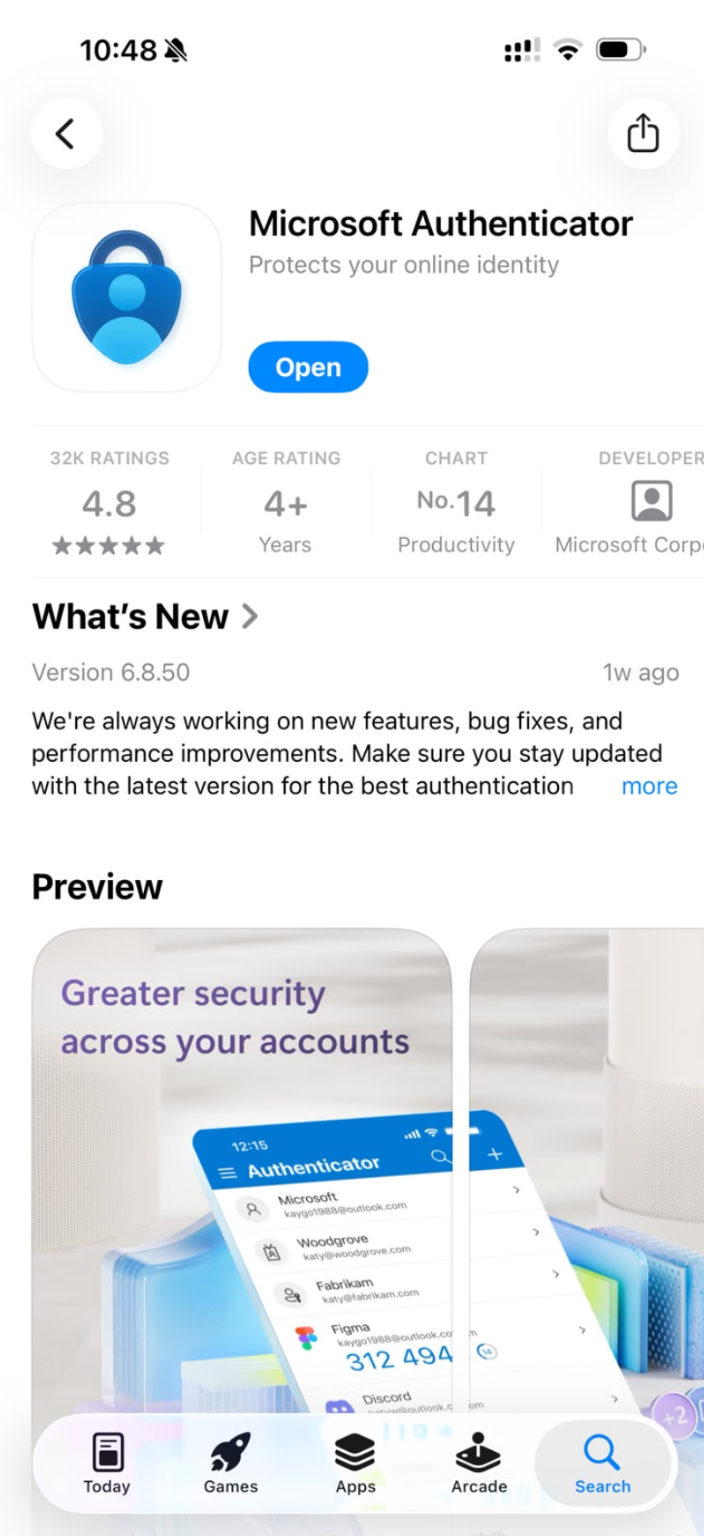
On your mobile phone, open the App Store (iPhone) or Google Play (Android), search for Microsoft Authenticator and install it.
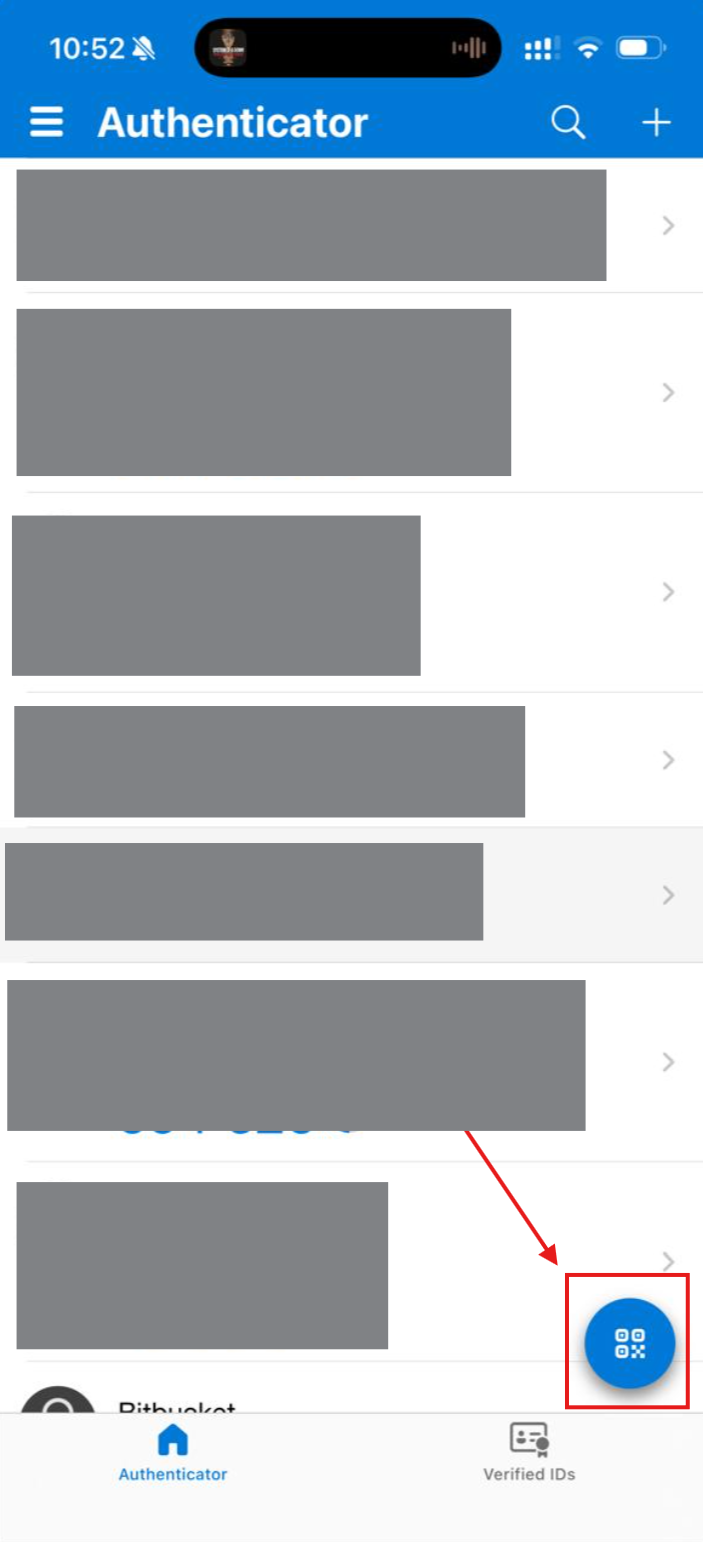
Open Microsoft Authenticator on your phone and tap the + / QR code button (the blue button) to get ready to scan the code.
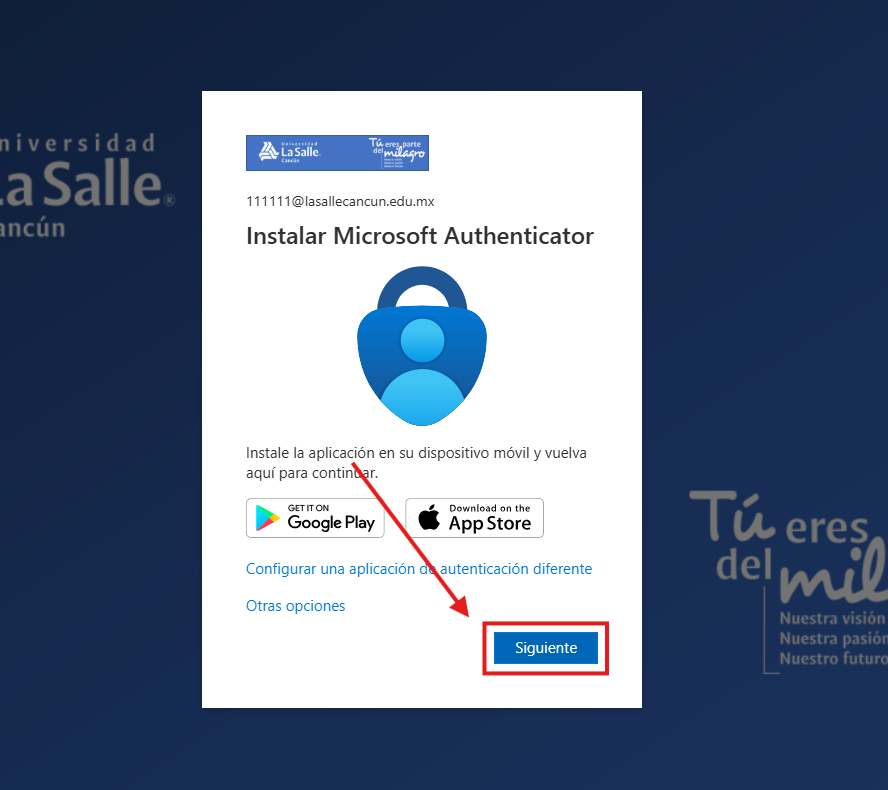
Back on the computer, on the "Start by getting the app" screen, click Next.
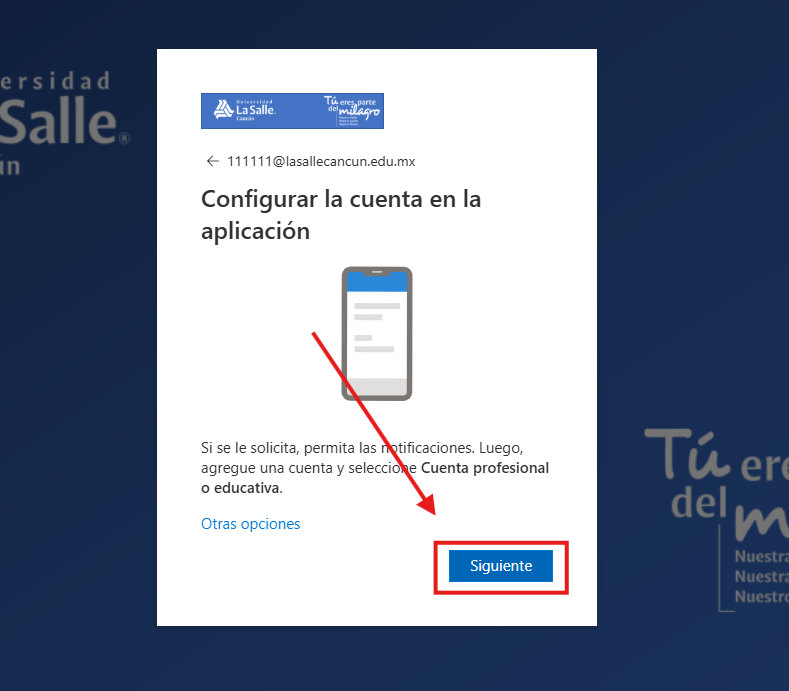
If prompted, allow notifications. Then, in the app, add an account and select Work or school account. On the computer, click Next.
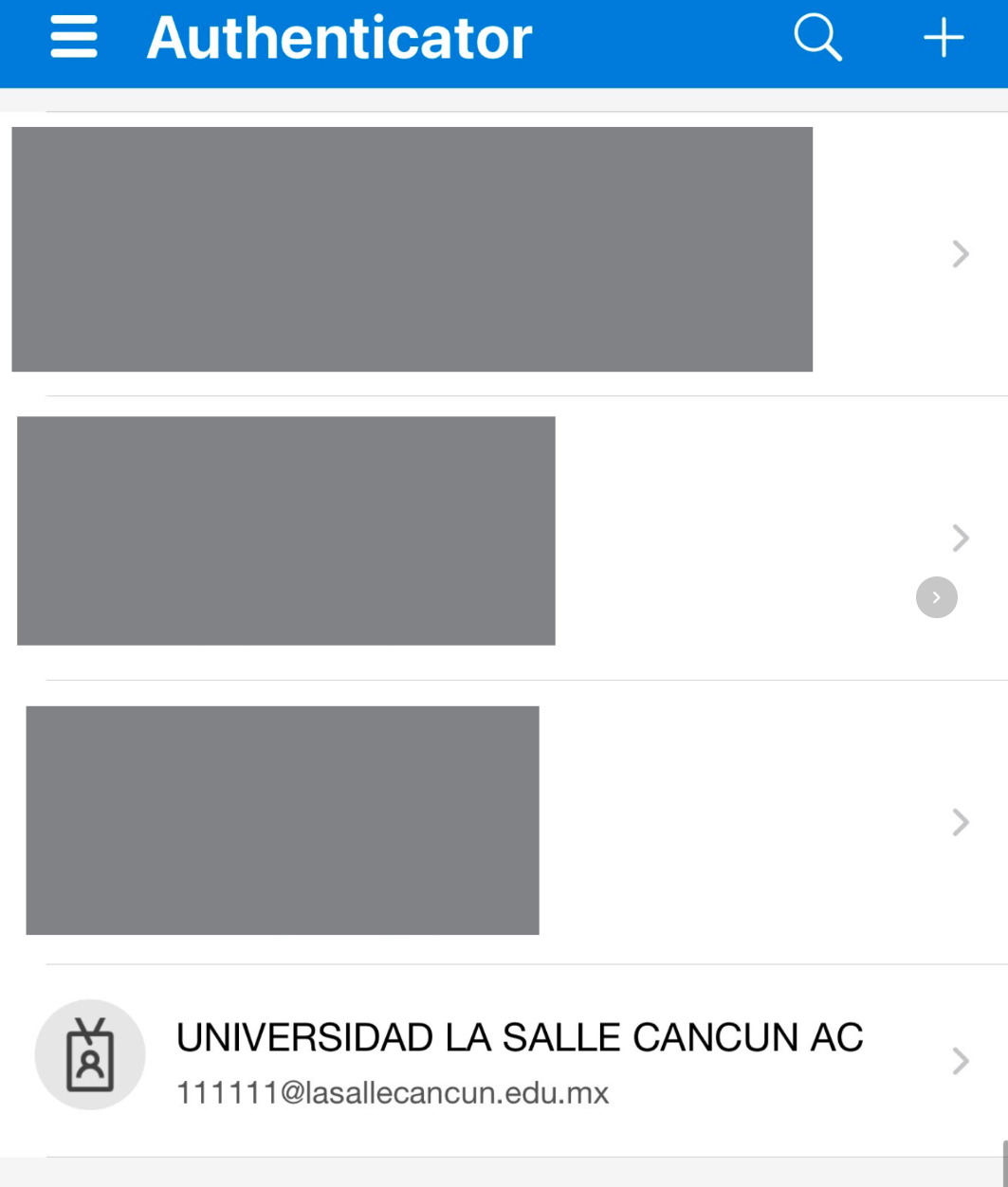
The computer will show the "Scan the QR code" screen with a QR code ready to be scanned.
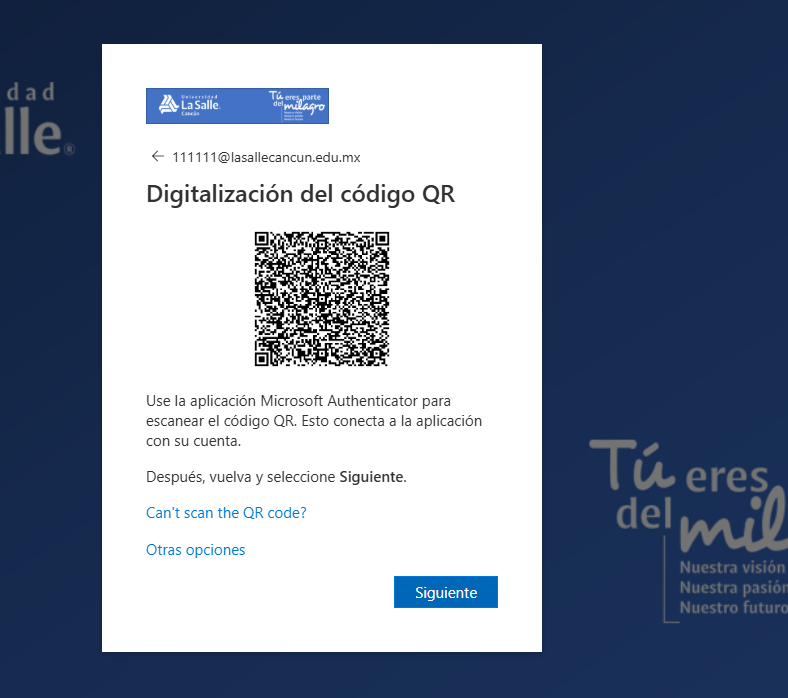
With the app on your phone (the "Scan QR code" screen), point the camera and scan the QR code shown on the computer.
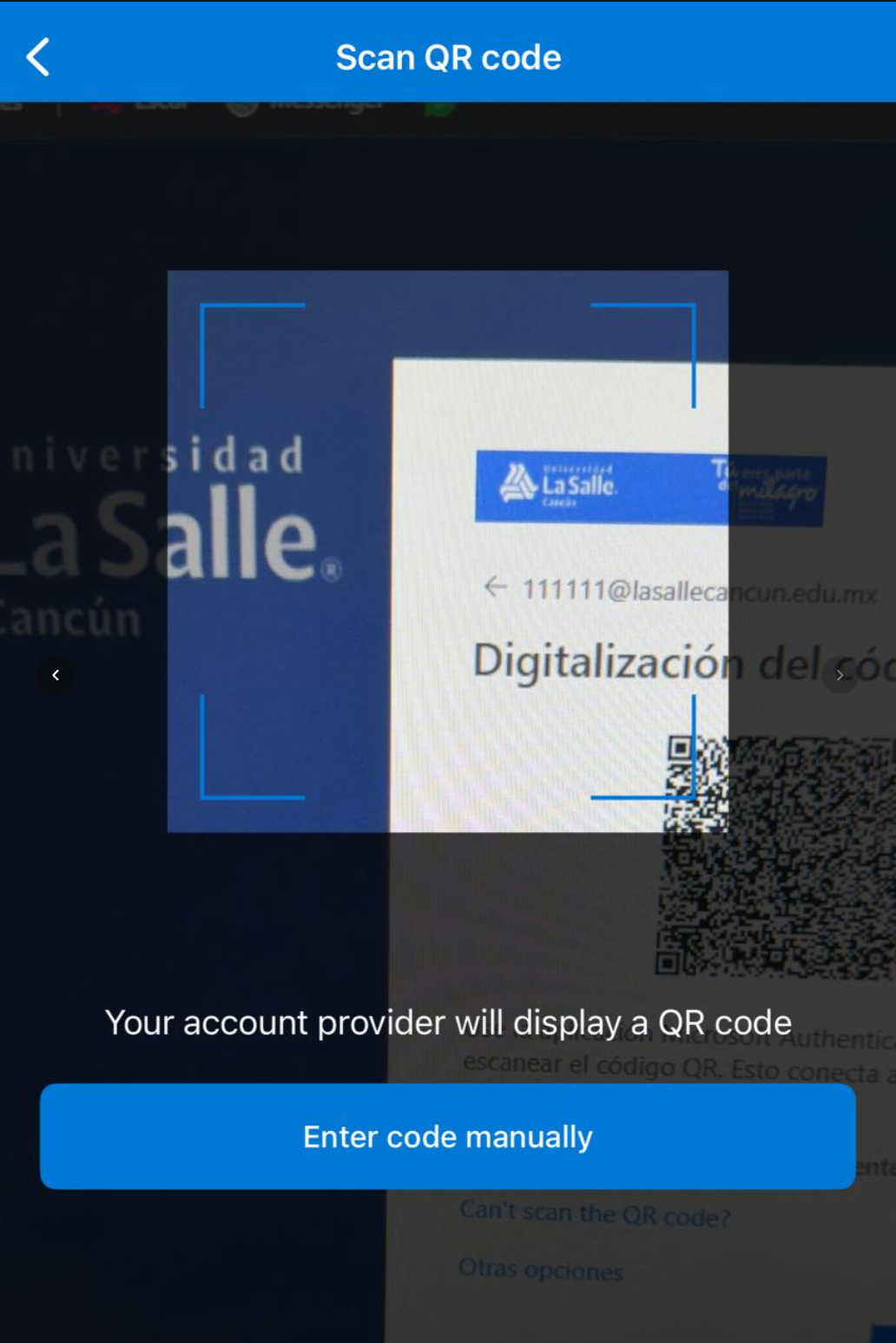
The UNIVERSIDAD LA SALLE CANCÚN AC account will appear in your account list inside the Authenticator app.
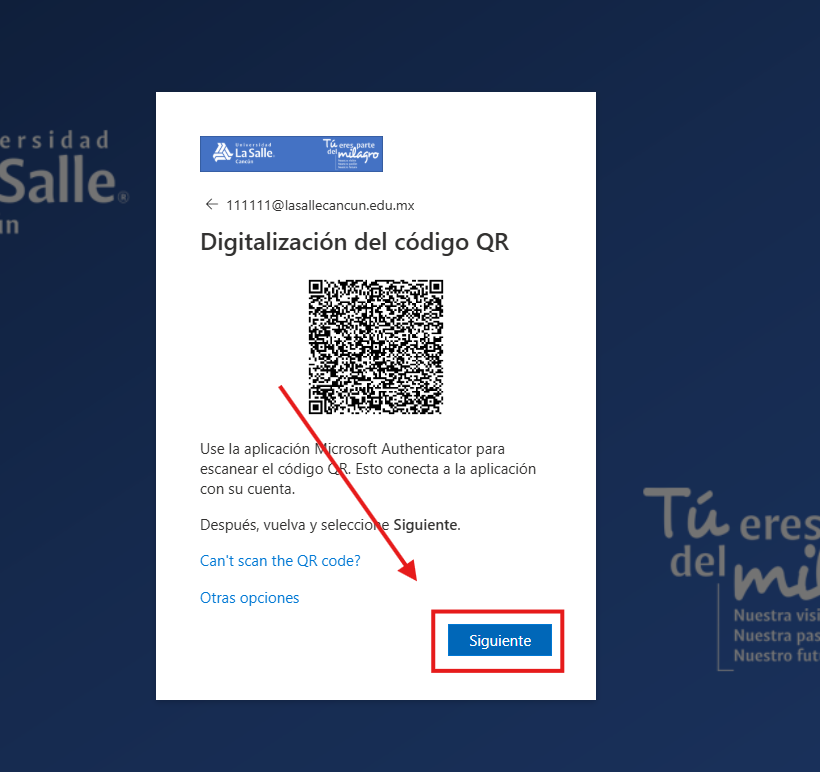
Once the account is linked, on the "Scan the QR code" screen of the computer, click Next.
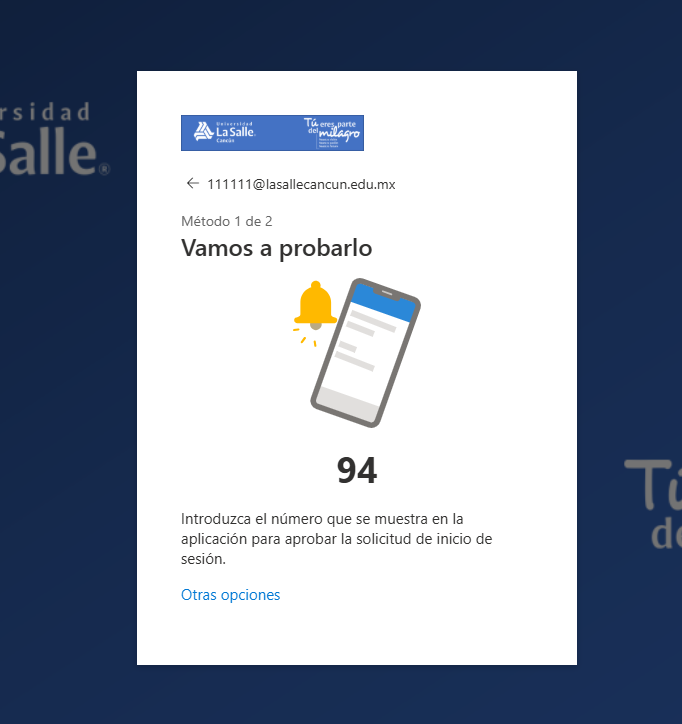
The computer will show "Let's try it out" with a number on the screen (for example, 94). Memorize that number.
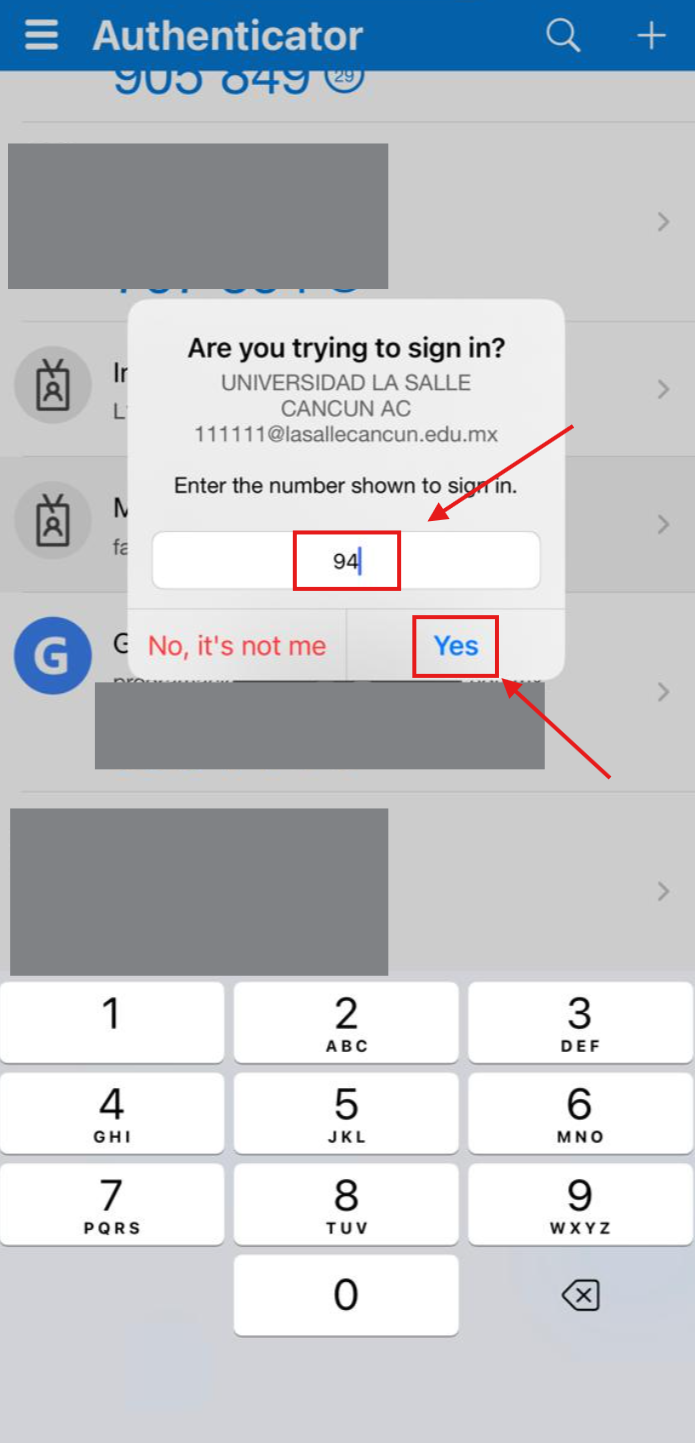
Your phone will display "Are you trying to sign in?". Type the number shown on the computer and tap Yes.
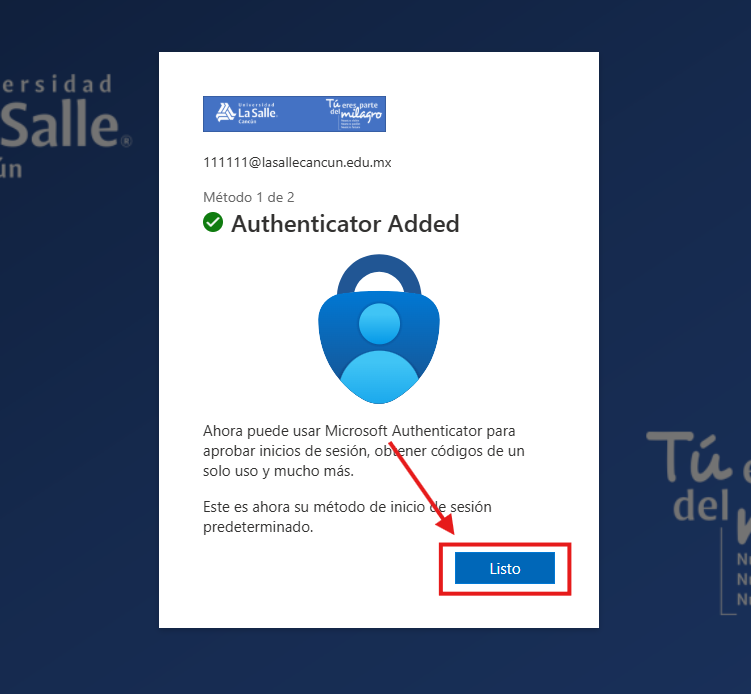
The computer will confirm "Authenticator Added". Click Done.
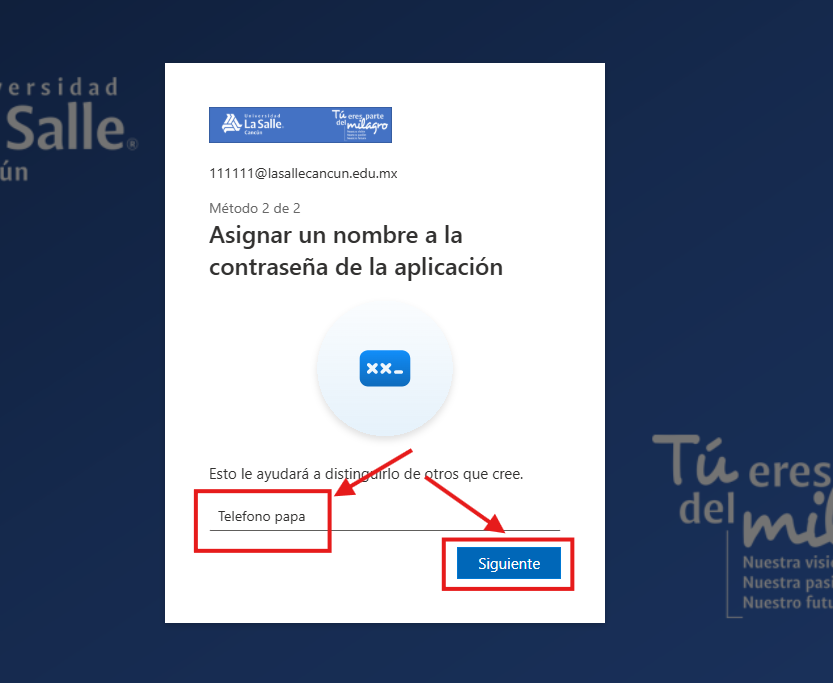
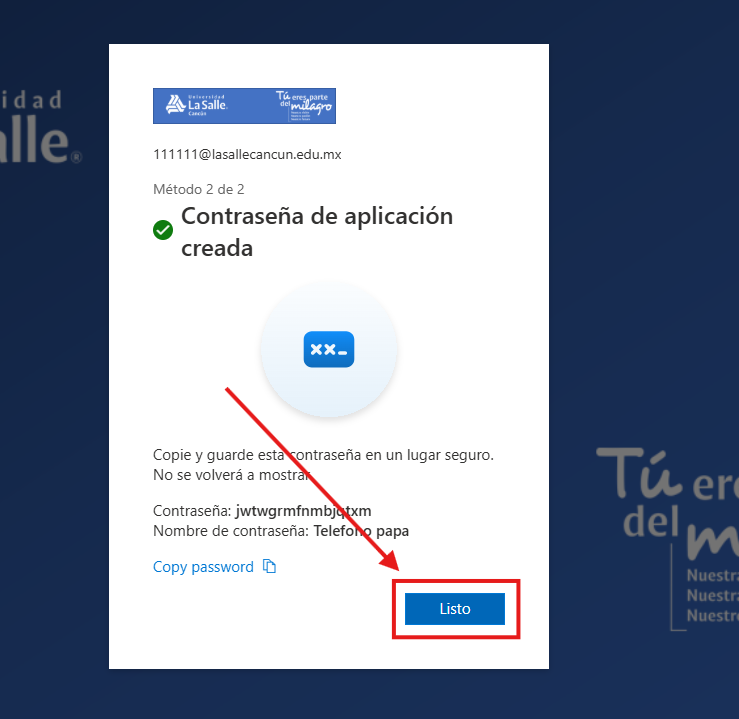
On "Name your app password", type a name to identify it (for example, "Dad's phone") and click Next.
An app password will be generated. Copy it with Copy password and store it in a safe place. Then click Done.
You will see the "Success" screen with your verification methods (App password and Microsoft Authenticator). Click Done to finish.
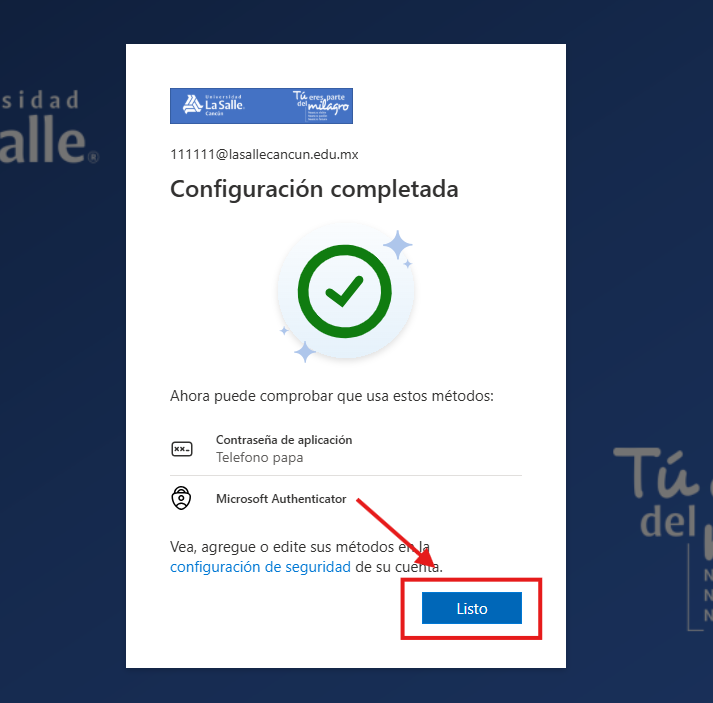
All set! Your Microsoft 365 account now has Multi-Factor Authentication. From now on, when you sign in you will need to approve the access from your phone with Microsoft Authenticator.
Need help? Write to us at programacion@lasallecancun.edu.mx